Quick answer
A dieline is the flat, unfolded outline of a box. It shows where the board will be cut, where it will be creased to fold, where the glue goes and how far the artwork must bleed. To set up packaging artwork: get the exact dieline for your box before you design, keep it on its own layer as a named spot colour set to overprint, extend backgrounds about 3mm past every cut line, keep text and logos clear of cuts and creases, check which way up every panel and flap reads once folded, leave glue areas clear of anything your printer asks you to keep off them, place the barcode on a flat panel away from folds, and supply finishes such as foil or spot UV as separate layers. Then print a mock-up, fold it and check it before you send the file.
Key takeaways
- Design on the dieline for your actual box. A generic template from the internet will not match the size, board thickness or glue flap your printer uses.
- Keep the dieline on its own layer, in a named spot colour that will not print. Never flatten it into the artwork.
- Run background artwork about 3mm past cut lines, and keep text, logos and barcodes well away from cuts and creases.
- Panels and flaps rotate when the box is folded. Print a test sheet, cut it out and fold it to check nothing ends up upside down.
- Barcodes go on a flat panel, never across a fold or edge, with clear quiet zones either side.
What is a dieline?
A dieline is a technical drawing of a box laid out flat. It is drawn as vector lines at actual size and tells the people producing your packaging where to cut, where to crease and where to glue. Your designer places the artwork on top of it, so the print lines up with every panel once the box is folded. Each box style has its own dieline, and the same style changes shape with the product's dimensions and the board thickness. Our guide to box styles shows the common constructions.
| Line or area | What it means | What to do with your artwork |
|---|---|---|
| Cut line | Where the board is cut to shape, including windows and slots | Extend backgrounds past it into the bleed; keep content inside it |
| Crease (fold) line | Where the board is scored so it folds cleanly | Keep text and logos off it; plan how images wrap across it |
| Perforation | A dashed cut for tear-off strips or easy-open features | Keep important content off it |
| Bleed | Artwork extended past the cut line, typically about 3mm | Run every background and edge-to-edge image into it |
| Safe area | An inner margin where content will not be cut or folded | Keep all text, logos and barcodes inside it |
| Glue area | The flap or panel where adhesive is applied | Leave it clear of anything your printer asks you to keep off it |
How to set up packaging artwork, step by step
- 1
Agree the box before you design
Confirm the box style, the internal dimensions of the product it holds and the board with your printer first. A change of board thickness can change the dieline. See folding carton vs corrugated vs rigid for how the construction affects this.
- 2
Get the dieline as a vector file
Ask for the dieline as an editable vector file, usually AI or PDF, at 100% size. Do not redraw it or scale it.
- 3
Put the dieline on its own layer
Lock it on a top layer named something clear, such as 'Dieline'. Keep it as a named spot colour set to overprint, so it shows on proofs but never prints or knocks out your artwork.
- 4
Build the artwork on a separate layer
Place artwork on its own layer underneath. Extend backgrounds about 3mm past every cut line, and keep text, logos and barcodes inside the safe area, away from cuts and creases.
- 5
Check panel orientation
Work out which panel is the front, which way the lid opens and which flaps tuck in. Rotate artwork on flaps and end panels so it reads correctly when the box is assembled.
- 6
Add finish layers
Supply foil, spot UV, embossing or debossing as separate layers or files, each in its own named spot colour, exactly aligned to the artwork. See packaging finishes.
- 7
Mock it up
Print the file at 100%, cut it out, fold it and glue it. Most orientation and wrap-around mistakes are obvious once you hold the box.
- 8
Export and send
Export a print-ready PDF with fonts embedded and images at 300dpi at placed size, with the dieline and finish layers kept separate. Our guide to setting up artwork for print covers colour and PDF settings in detail.
Panels, flaps and which way up
The commonest packaging artwork mistake is a panel that reads correctly on screen and upside down on the shelf. On a flat dieline the end flaps, tuck flaps and back panels point in different directions, and on many boxes the top and bottom flaps face opposite ways. The only reliable check is a folded mock-up.
| Panel | What to check |
|---|---|
| Front (principal display) panel | It is the panel the customer sees on the shelf, the right way up when the box stands as it will be displayed |
| Side and end panels | Text reads in the direction the box will be picked up; vertical text runs consistently on both sides |
| Tuck and dust flaps | Any print on them is rotated to read correctly when the flap is closed, or kept plain |
| Back panel | Barcode, ingredients or legal text sit on a flat area, clear of the glue flap and folds |
| Inside of the box | If the inside is printed, it is set up as a second side with its own artwork, mirrored correctly against the outside |
Images that wrap around a corner
If a photo or pattern continues across a crease, a slight variation in folding will move the join. Avoid placing faces, text or a fine line exactly on the crease, and allow the image to continue a few millimetres past it on both sides.
Barcodes and small text on packaging
A barcode that will not scan can stop a product being sold. GS1, the organisation that issues retail barcodes, publishes the size and placement rules. The figures below are for an EAN-13, the barcode used on most retail products in the UK.
| EAN-13 on a consumer item | Minimum | Recommended | Maximum |
|---|---|---|---|
| X-dimension (width of the narrowest bar) | 0.264mm | 0.330mm | 0.660mm |
| Bar height | 18.28mm | 22.85mm | 45.70mm |
| Left quiet zone | 11 × the X-dimension | ||
| Right quiet zone | 7 × the X-dimension |
- Place the barcode on a flat panel, never across a crease, a corner, a seam or a perforation.
- GS1 guidance is to place it low on the back of the pack, preferably to the right, and at least 8mm and no more than 100mm from the edge where possible. Avoid the bottom of the pack.
- Keep the quiet zones on both sides completely clear of print.
- Use the barcode file supplied by your barcode generator at 100% or within the allowed range. Do not stretch it to fit a space.
- Print the bars in a single dark colour on a light background, and test-scan a proof.
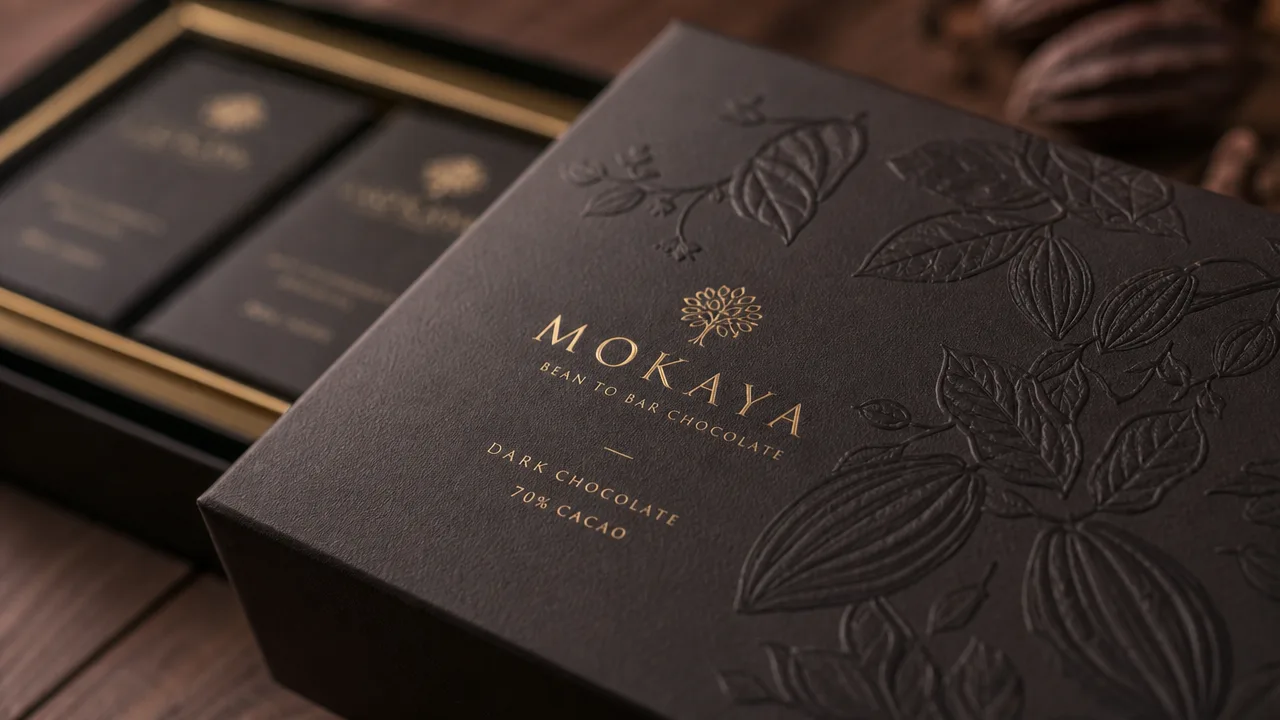
Custom printed packaging from Keighley
Folding cartons printed on our B2 Heidelberg litho presses, with foil, embossing, soft-touch and spot UV finished in-house. Every file is checked and proofed before production.
Explore the serviceIngredients, warnings and other small text should be set in solid single colours where possible, ideally 100% black, rather than a mix of four colours. Small type built from several inks can show coloured fringes if the plates are fractionally out of register.
Finish layers and glue areas
Foil blocking, embossing, debossing and spot UV each need their own artwork, because each is applied in a separate process after printing. Supply each as a separate layer or file in a named spot colour (for example 'Foil' or 'Spot UV'), set to overprint and aligned exactly with the print. We laminate in gloss, silk and soft-touch and apply spot UV, foil and embossing in-house, and our packaging finishes guide explains how they work on board.
| Layer | Typical content | Notes |
|---|---|---|
| Dieline | Cut, crease, perforation and glue lines | Named spot colour, overprint, not printed |
| Artwork | CMYK and any Pantone spot colours | Extends about 3mm past cut lines |
| Foil | Solid shapes where foil is applied | Avoid very fine detail, which can fill in |
| Spot UV | Solid shapes where the gloss varnish goes | Works best over matt or soft-touch lamination |
| Emboss / deboss | Shapes to be raised or pressed in | Keep away from creases; the reverse side is affected |
Ask which areas must stay clear for gluing
Adhesive bonds best to bare board. Ink, varnish, coating or lamination on a glue flap can stop the box holding together. Ask your printer which glue areas must be left clear, and mark them on a separate layer rather than relying on the dieline alone.
What to send, and the final checks
| Common problem | What you see | How to avoid it |
|---|---|---|
| No bleed on cut edges | Thin white lines along the box edges | Run backgrounds about 3mm past every cut line |
| Text on a crease | Words split or cracked along the fold | Keep text inside the safe area of each panel |
| Upside-down flap or panel | Branding reads the wrong way on the shelf | Fold a printed mock-up before approving |
| Barcode on a fold or too small | Fails to scan at the till | Place on a flat panel at a GS1-approved size |
| Dieline printed by mistake | Visible lines on the finished box | Keep it on its own overprinting spot-colour layer |
We check every file and issue a digital proof before production. For a new box, it is worth asking for a physical sample as well, so you can check the fit with your product. If you are briefing a new box from scratch, our packaging brief template lists everything to include, and the custom printed packaging guide explains the whole process.